
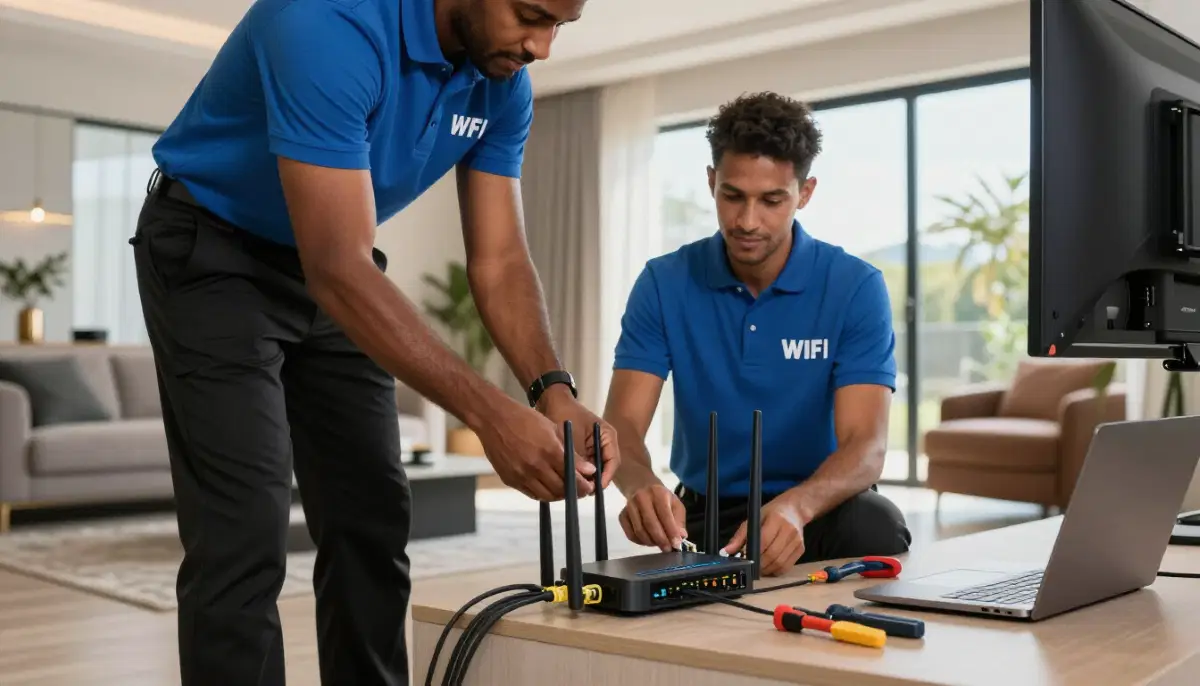
Professional router installation – knowing when to replace can save your connection
5 Signs Your WiFi Router Is Failing: Save Your Connection Today
Is your internet constantly buffering during your favourite DStv shows? Are video calls dropping, or does your WiFi seem slower than it should be? Before you blame your service provider, your router might be telling you it’s time for a replacement.
At DSTV Installers Centurion, we’ve helped thousands of Centurion and Pretoria East homeowners optimize their home networks for seamless streaming, gaming, and working from home. After 17 years in the industry, we’ve seen every router problem imaginable – and we know exactly what signs indicate failure.
In this comprehensive guide, we’ll walk you through the 5 signs your WiFi router is failing, what causes these issues, and exactly what to do about them. By the end, you’ll know whether a simple fix will work or if it’s time for an upgrade – potentially saving you hours of frustration and hundreds in unnecessary technician calls.
📶 Quick Router Health Check
⚠️ Warning Signs:
- Frequent disconnections
- Slow speeds (especially close to router)
- Overheating device
- Lights flashing abnormally
- Age > 3-4 years
✅ Quick Fixes:
- Restart router (30-30-30 rule)
- Update firmware
- Check cable connections
- Relocate to better position
- Consider WiFi range extension
👉 Need expert help? Contact our team for professional network assessment. We serve all Centurion and Pretoria East areas.
Why Router Health Matters for Your Home Entertainment
Your router is the heart of your home’s internet. When it starts failing, everything suffers:
- Streaming quality: Buffering, pixelation, and dropped connections on DStv Internet and Netflix
- Gaming: Lag, disconnections, and poor experience
- Work from home: Dropped video calls, slow file transfers
- Smart home devices: Cameras, lights, and thermostats stop responding
- Multiple users: Household chaos when everyone’s connection fails
A failing router doesn’t always die completely – it often degrades slowly, making it hard to diagnose. Let’s look at the specific signs.
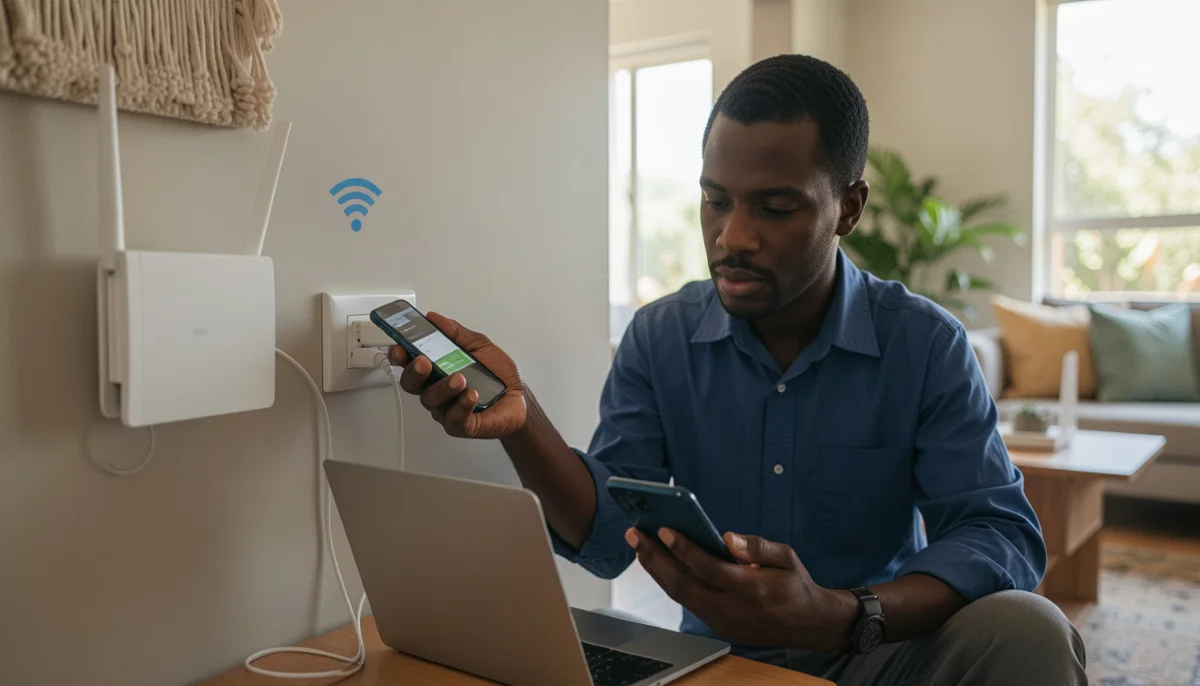
WiFi range extension services – sometimes the router is fine but needs help reaching all areas
Sign #1: Frequent Disconnections and Dropped Signals
The symptom: Your devices constantly disconnect and reconnect. You might see the WiFi icon disappear and reappear, or get “No internet connection” messages despite showing connected.
What’s Happening
Modern routers should maintain stable connections for days or weeks at a time. If you’re experiencing multiple disconnections daily, something is wrong. Common causes include:
- Overheating: Internal components failing due to heat damage
- Firmware corruption: Software bugs causing instability
- Power supply issues: Failing power adapter causing voltage fluctuations
- Hardware degradation: Capacitors and chips wearing out
How to Test
- Check logs: Access your router’s admin panel and look for system logs showing restarts or errors.
- Monitor uptime: Note how long the router stays connected before dropping.
- Test different devices: If all devices disconnect simultaneously, it’s the router. If only one device has issues, that device may be the problem.
Quick Fixes to Try
- Restart properly: Unplug for 30 seconds, plug back in, wait 2 minutes. This clears temporary issues.
- Check ventilation: Ensure router has airflow – not buried in a cupboard or behind furniture.
- Update firmware: Most routers have auto-update in settings. Manual updates can fix stability bugs.
If disconnections persist after these steps, your router is likely failing. Request a free installation quote for a professional replacement.
Sign #2: Slower Speeds Than You’re Paying For
The symptom: You pay for 100Mbps fibre, but speed tests show 20-30Mbps – even when standing next to the router. Or speeds that fluctuate wildly throughout the day.
What’s Happening
Routers degrade over time. Internal components can fail, reducing throughput. Common issues include:
- Processor overload: Older CPUs can’t handle modern speeds
- Memory leaks: Software bugs consume RAM, slowing performance
- Interference sensitivity: Aging hardware more susceptible to interference
- Port degradation: Ethernet ports can fail, reducing wired speeds
How to Test
- Run speed tests: Use fast.com or speedtest.net at different times of day. Test both WiFi and wired (if possible).
- Compare with plan: Check what speed you’re paying for from your ISP.
- Test near router: Stand within 2 meters, no obstacles, and test.
- Test wired connection: Connect a laptop directly to router with Ethernet cable. If wired is fast but WiFi slow, the issue is WiFi radio. If both are slow, the router’s main processor is struggling.
Quick Fixes to Try
- Change WiFi channel: In congested areas like Centurion complexes, interference from neighbours is common. Use a WiFi analyzer app to find a less crowded channel.
- Split bands: Separate 2.4GHz and 5GHz networks if they’re combined. 5GHz is faster but shorter range – use for streaming devices.
- QoS settings: Enable Quality of Service and prioritize streaming devices (like DStv decoders).
If wired speeds match your plan but WiFi is slow, you might need WiFi range extension services. If both are slow, it’s time for a new router.
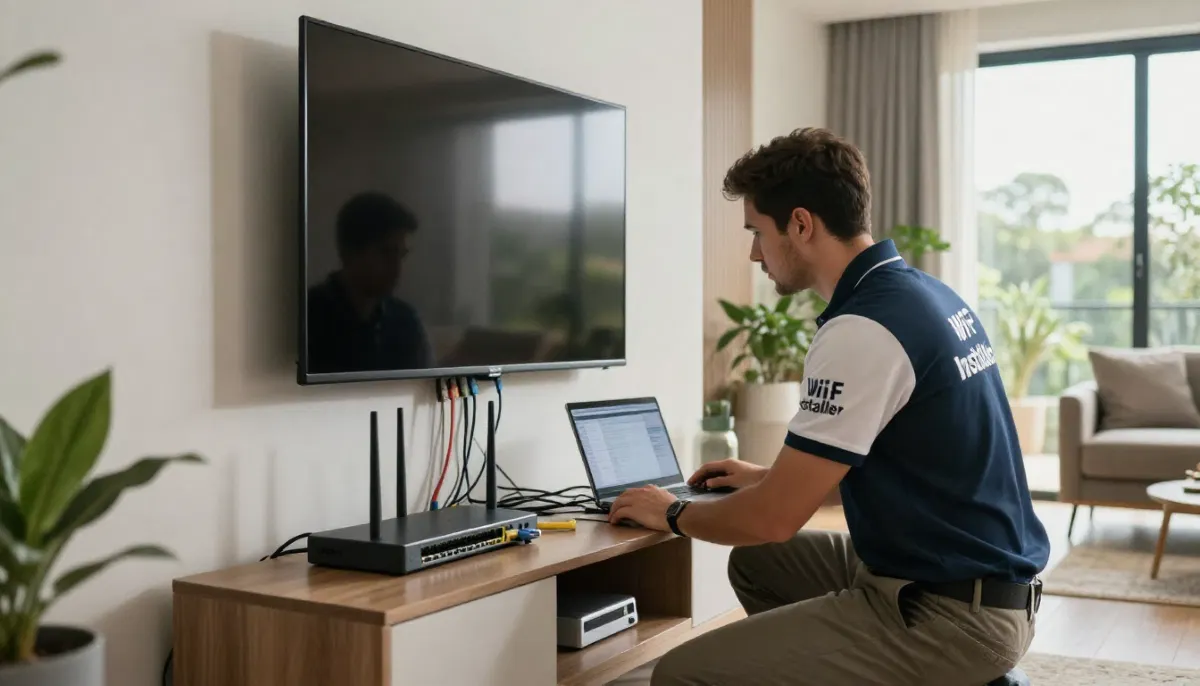
Professional home WiFi network setup ensures optimal coverage for streaming and gaming
Sign #3: Router Overheating and Physical Issues
The symptom: The router feels hot to the touch, makes buzzing sounds, or has erratic LED behaviour. You might notice a burning smell in extreme cases.
What’s Happening
Routers generate heat during normal operation, but excessive heat indicates problems:
- Ventilation blocked: Router needs airflow – enclosed spaces trap heat
- Component failure: Dying chips generate excess heat
- Power supply issues: Failing power adapters can overheat
- Dust buildup: Internal dust insulates components
How to Test
- Touch test: Router should be warm, not hot. If you can’t keep your hand on it, it’s overheating.
- Check lights: All lights should be steady or flashing normally. Wildly erratic behaviour indicates problems.
- Listen: Buzzing or clicking sounds are bad signs.
- Smell: Burning smell means immediate danger – unplug immediately.
Quick Fixes to Try
- Relocate: Move router to open area with good airflow – not in cabinets, behind TVs, or in corners.
- Clean: Dust can be blown out with compressed air (unplugged!).
- Elevate: Put router on a shelf, not carpet, for better airflow.
- Check power supply: If adapter is hot, it may need replacement.
Overheating significantly reduces router lifespan and can be a fire hazard. If relocating doesn’t help, replace immediately. Contact our team for help with professional network assessment.
Sign #4: Age – The Silent Killer
The symptom: Your router is more than 3-4 years old, and you’re experiencing any of the above issues – or just feeling that performance isn’t what it used to be.
Why Age Matters
Technology evolves fast. A 4-year-old router:
- Lacks modern standards: WiFi 5 (802.11ac) vs WiFi 6/6E – newer standards handle multiple devices much better
- Slower processors: Can’t handle modern speeds (300Mbps+ plans)
- Fewer devices: Older routers struggle with 10+ connected devices (typical modern home)
- Security vulnerabilities: Older firmware may have unpatched security holes
- Degraded components: Capacitors and chips wear out over time
Router Lifespan by Type
| Router Type | Typical Lifespan | Best For |
|---|---|---|
| Budget routers (R500-R800) | 2-3 years | Small apartments, light usage |
| Mid-range (R800-R1,500) | 3-4 years | Average homes, moderate streaming |
| High-end (R1,500-R3,000) | 4-5 years | Large homes, heavy streaming, gaming |
| Mesh systems | 4-6 years | Multi-story homes, whole-home coverage |
How to Test
- Check model: Look up your router’s release date online.
- Count devices: List all connected devices – phones, TVs, decoders, cameras, etc. If >10 and router >3 years, it’s struggling.
- Check WiFi standard: If it’s WiFi 4 (802.11n) or older, definitely upgrade.
What to Do
If your router is over 3 years old and you’re experiencing any issues, replacement is usually the most cost-effective solution. A new R1,200 router will outperform a 4-year-old R3,000 flagship. Request a free installation quote – we can recommend and install the perfect router for your home.
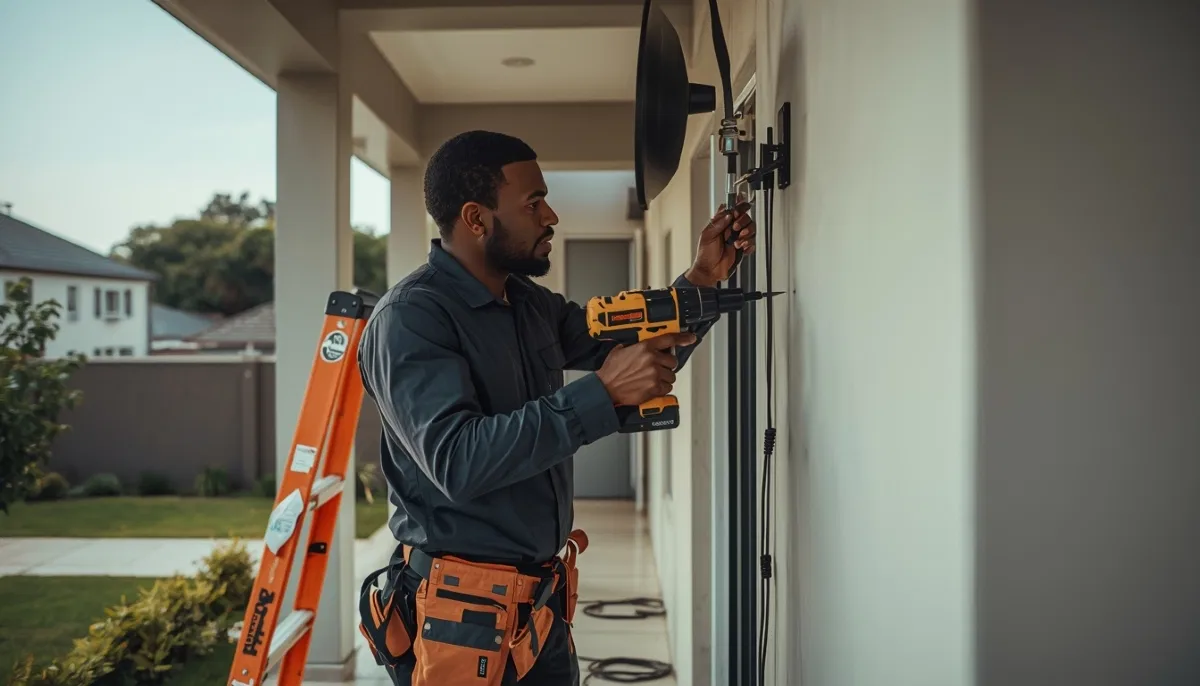
Professional cable installation – sometimes the issue is wiring, not the router
Sign #5: Dead Zones That Keep Expanding
The symptom: Areas of your home that used to have WiFi now don’t. Or you need to be closer to the router than before for good signal.
What’s Happening
Router WiFi radios degrade over time. Transmit power decreases, reducing range. This can happen gradually, so you might not notice until coverage becomes a real problem.
Common Dead Zone Locations in Centurion Homes
- Bedrooms far from router: Signal has to travel through multiple walls
- Entertainment areas: Where you need it most for streaming
- Home offices: Critical for work-from-home
- Outdoor areas: Patio, garden, pool
How to Test
- Walk test: Use a WiFi analyzer app on your phone and walk through your home, noting signal strength in each room.
- Compare to past: If you remember certain areas having signal that now don’t, the router is degrading.
- Test with new device: Sometimes a device’s WiFi card fails – test with multiple devices.
Quick Fixes to Try
- Relocate router: Central position, elevated, away from walls and metal objects.
- Change antenna position: If router has external antennas, try different orientations.
- Update firmware: Sometimes software updates improve radio performance.
When You Need More Than a Router
Sometimes, a single router can’t cover an entire home – especially large Centurion properties or multi-story homes. In these cases:
- WiFi range extension services: Boost signal to dead zones
- Mesh systems: Multiple units providing seamless whole-home coverage
- Powerline adapters: Use electrical wiring to extend network
- Ethernet cabling: Hard-wired access points for ultimate performance – our cable installation service can help
We specialize in whole-home WiFi solutions. Contact our team for help designing the perfect network for your home.
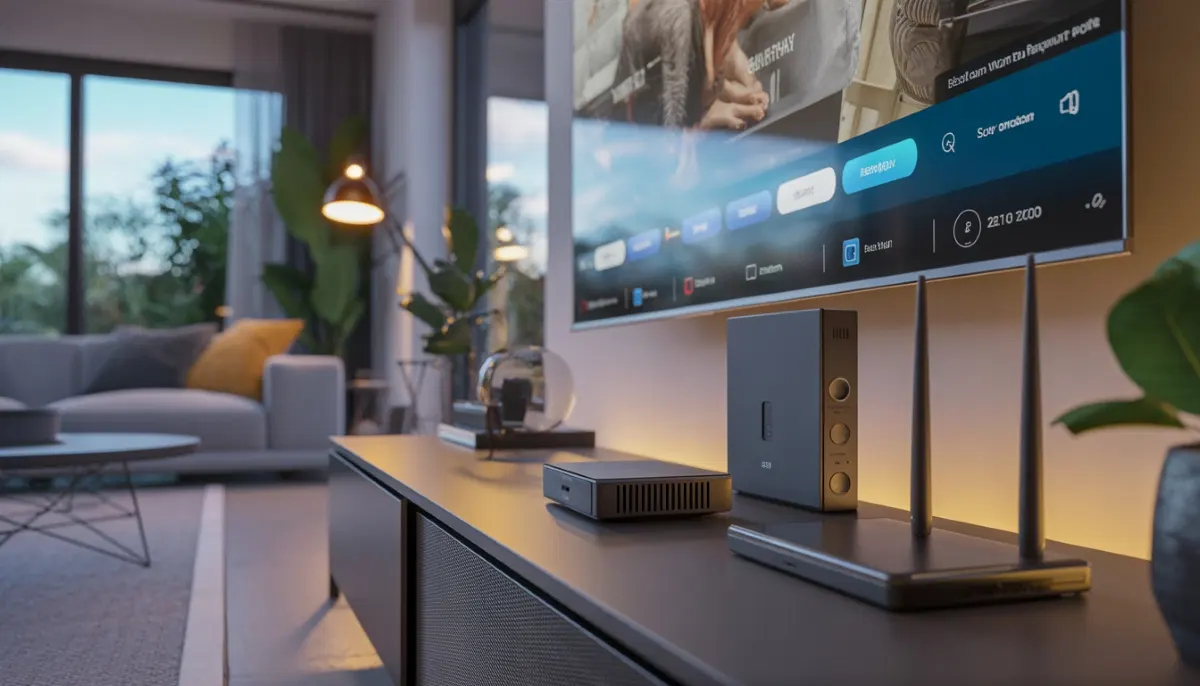
Smart TV entertainment setup – reliable WiFi is essential for streaming
Bonus: How to Extend Your Router’s Life
Prevention is better than cure. Here’s how to maximise your router’s lifespan:
Proper Placement
- Central location: In the middle of your home, not a corner
- Elevated: On a shelf, not the floor
- Away from interference: Keep away from cordless phones, microwaves, baby monitors
- Ventilation: Open area with airflow – not in a cupboard
Regular Maintenance
- Monthly restarts: Schedule a weekly restart to clear memory
- Firmware updates: Check every 3 months for updates
- Clean: Dust occasionally with compressed air
- Check cables: Ensure all connections are secure
When to Upgrade, Not Replace
Sometimes your router is fine, but your needs have outgrown it:
- More devices: If you’ve added many smart home devices
- Faster internet: Upgraded to fibre? Old router may not handle speeds
- Larger home: Moved or extended? Need more coverage
- New applications: 4K streaming, gaming, VR require more bandwidth
Router Replacement Guide: What to Buy
If you’ve decided it’s time for a new router, here’s what to consider:
Key Specifications
| Feature | What to Look For | Why It Matters |
|---|---|---|
| WiFi standard | WiFi 6 (802.11ax) | Handles multiple devices better, faster speeds |
| Speed rating | AX3000 or higher | Combined speed rating – higher is better |
| Bands | Dual-band or Tri-band | Separates devices to reduce congestion |
| Ports | Gigabit Ethernet (at least 4) | Wired connections for streaming devices |
| Mesh capability | Compatible with mesh system | Can add nodes later for more coverage |
Recommended Routers for Different Needs
- Small apartments (1-2 people): TP-Link Archer AX55 (R1,200-R1,500)
- Average homes (3-4 people, streaming): Asus RT-AX58U (R1,800-R2,200)
- Large homes (5+ people, gaming): Netgear Nighthawk RAX50 (R2,500-R3,000)
- Whole-home mesh: TP-Link Deco X60 (3-pack R4,500-R5,000)
We supply and install all these models. Request a free installation quote and we’ll recommend the perfect router for your home.
Professional Installation vs DIY
While replacing a router is often simple, professional installation offers advantages:
Benefits of Professional Setup
- Optimal placement: We find the perfect location for maximum coverage
- Proper configuration: QoS, port forwarding, security settings optimized
- Whole-home assessment: We identify dead zones and recommend solutions
- Device connection: We connect all your devices (DStv decoders, TVs, etc.)
- Warranty: 12-month guarantee on our work
Our DStv installation services in Centurion include network optimization as part of our complete home entertainment packages.
Frequently Asked Questions
We recommend restarting your router weekly. Unplug for 30 seconds, plug back in, wait 2 minutes. This clears memory and resolves many temporary issues. See our WiFi and network troubleshooting FAQs for more tips.
Absolutely. DStv Explora decoders use internet for Catch Up, Showmax, and software updates. Poor WiFi causes buffering and slow menu response. Our signal troubleshooting and repairs team often finds router issues are the real problem.
Run a speed test on a wired connection directly to the router. If speeds match your plan, internet is fine. Then test WiFi near the router – if speeds drop significantly, router is the issue. Our team can diagnose this for you – contact our team for help.
For reliable streaming, look for WiFi 6 routers with strong QoS features. We recommend the Asus RT-AX58U or TP-Link Archer AX55. Our DStv Internet setup service includes router optimization for streaming.
Yes! Our WiFi range extension services are perfect for large Centurion properties. We can install mesh systems, range extenders, or wired access points for whole-home coverage.
Router supply and installation starts from R1,500 including a quality router. We also offer router-only installation if you’ve purchased your own (R650). Request a free installation quote for accurate pricing.
Absolutely. We specialize in whole-home network optimization for families with many devices. We’ll configure QoS, set up guest networks, and ensure all your smart TV entertainment devices work flawlessly.
Real Centurion Stories: When Routers Failed
The Streaming Nightmare
Location: Midstream, Centurion
Problem: Constant buffering on DStv Explora, blamed the decoder
Solution: Router was 5 years old, overheating, couldn’t handle 4K streaming
Result: New WiFi 6 router, perfect streaming, R0 in unnecessary repairs
The Work-From-Home Disaster
Location: Garsfontein, Pretoria East
Problem: Daily video call drops, lost productivity
Solution: Router placed in metal cabinet, overheating constantly
Result: Relocated router, added WiFi extension, stable calls ever since
The Gaming Lag
Location: Silver Lakes, Pretoria East
Problem: Son’s gaming unplayable, blamed internet provider
Solution: Old router couldn’t prioritize gaming traffic
Result: New router with QoS, gaming smooth, parents can stream simultaneously
When to Call a Professional
If you’ve tried the steps above and still experience issues, it’s time for expert help. Call us if:
- You’ve restarted and updated firmware with no improvement
- Your router is over 4 years old and having issues
- You have dead zones in your home
- Multiple devices experience different problems
- You want to optimize your network for streaming and gaming
Our team provides comprehensive network assessments for Centurion installations and support and Pretoria East WiFi and DStv services. We’ll diagnose the issue and recommend the most cost-effective solution.
Stop Fighting Your WiFi – Get Professional Help Today
Don’t let a failing router ruin your streaming, gaming, and work. Our team serves all Centurion and Pretoria East suburbs with same-day service available.
R250 call-out fee (credited to repairs) | 12-month warranty | Same-day service available
Part of the ServiceLink SA trusted technician network – verified, insured, and guaranteed.